AI Inbox Triage
Tools: Power Automate · Microsoft 365 · Teams
Every company has a general inbox, and like most, ours collects a bit of everything. Several of us share the job of keeping an eye on it.
01Why I built it
The challenge with a general inbox is that a lot of junk comes through it, and most of what's left only matters to one of the people watching it. A salesperson scans it for leads. A support person scans it for service requests. Both have to wade through everything else to find their piece.
Multiply that by the volume and it becomes an annoying admin task for everyone involved. Before starting this project, I did a quick audit of the 25 most recent emails to see what the mix looked like. 24 of them didn't need a response. The one that did was an urgent service request.
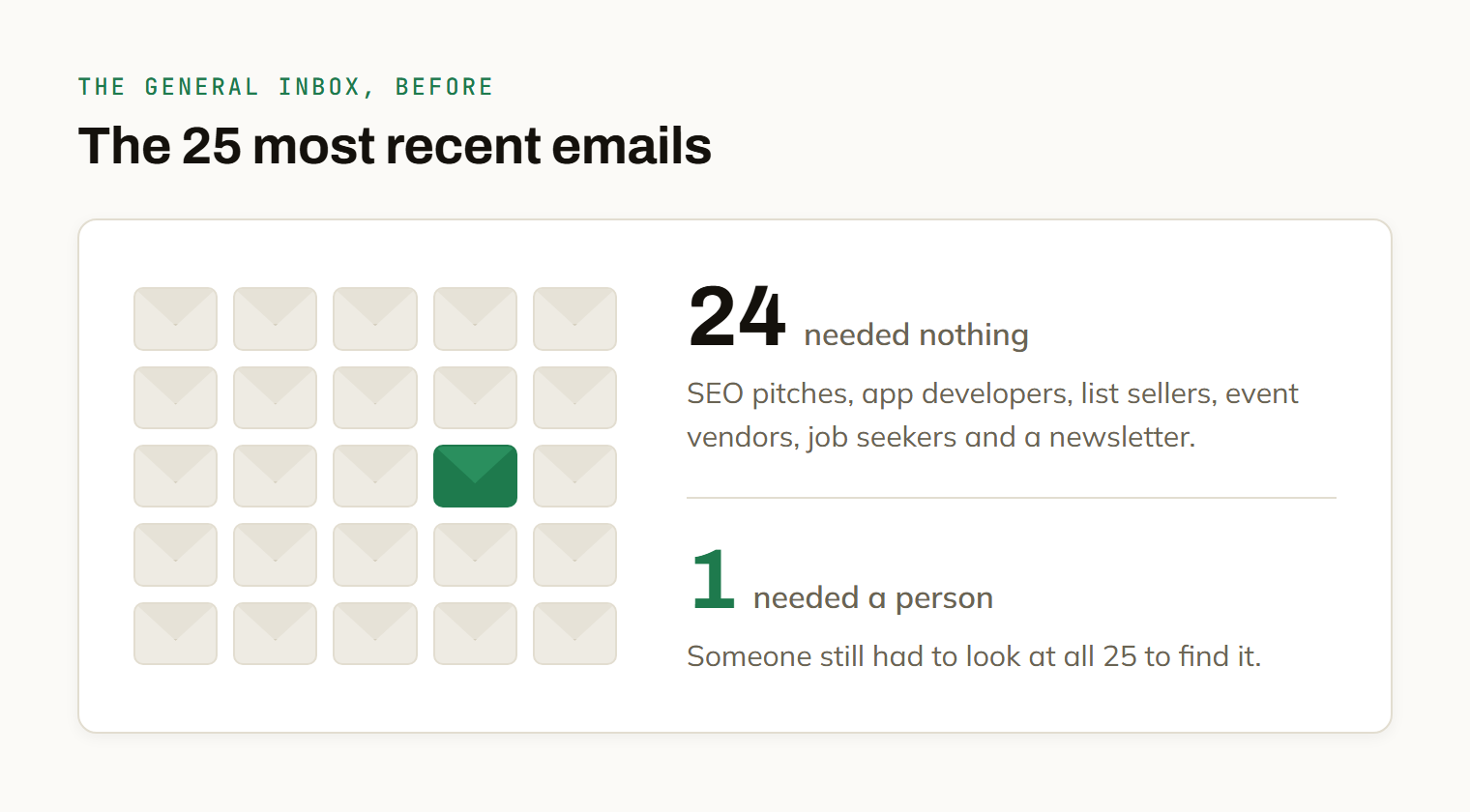
Over a week, that adds up to more than 100 emails, and finding the ones that need a response starts to feel like looking for a needle in a haystack.
You still have to find the needle, though. It's usually a chance to make a sale, or an existing customer who will have a bad experience if nobody gets back to them in time.
Before, whoever saw an email first would forward it to the right internal team from their own inbox. It wasn't always clear whether someone had already dealt with an email. People sometimes cc'd teammates to keep everyone in the loop, but the cc's were easy to forget.
The real problem was visibility.
02What I built
To fix this, I built an AI triage automation. It runs in Power Automate, which comes with Microsoft 365, with an AI step in the middle.
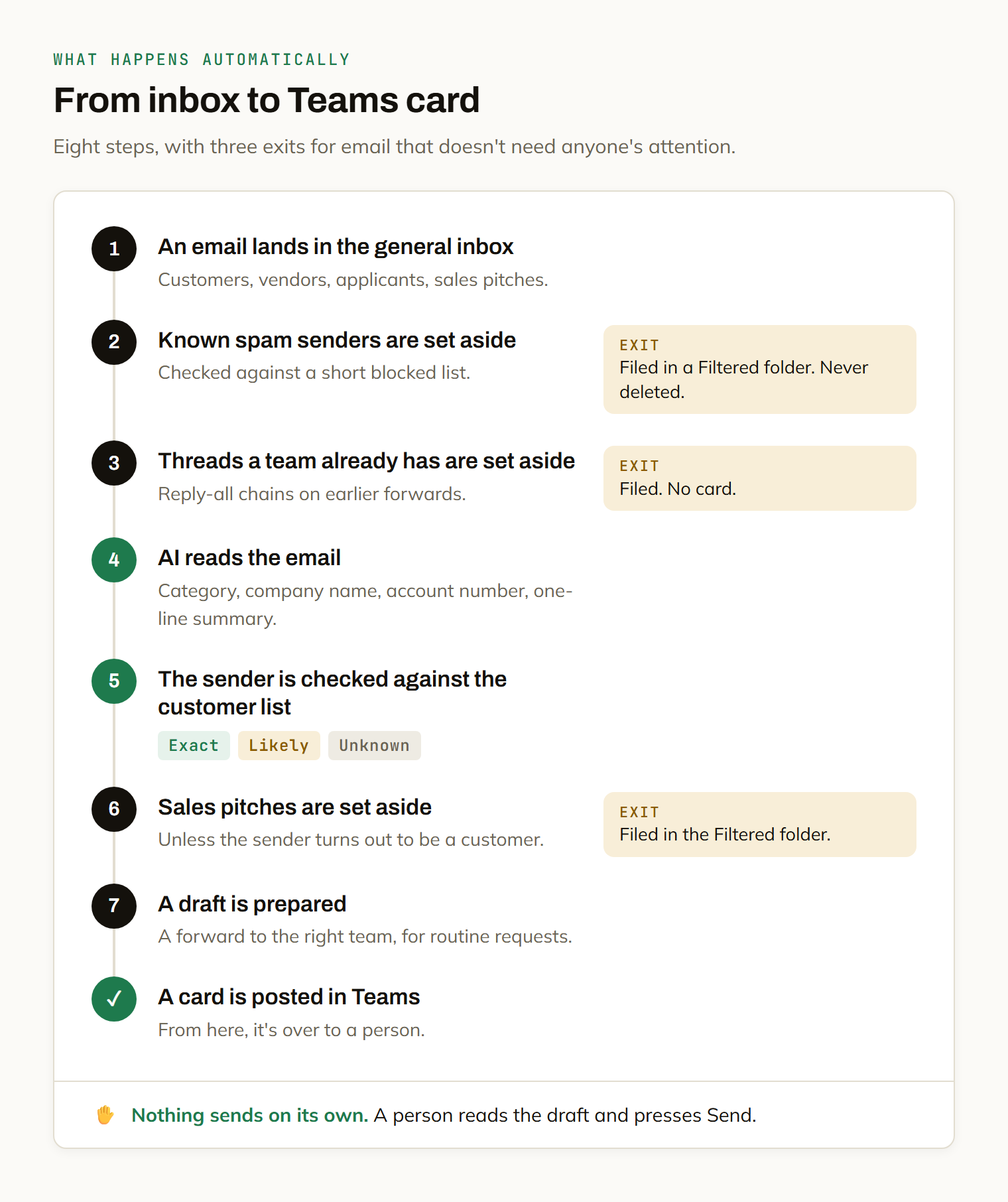
The AI reads each email, picks a category, pulls out the company name, and writes a one-sentence summary of what the sender wants.
The category matters because each one has its own routing rule. Sales, service and employment emails each go to a different team, and there are a few other buckets beyond those.
All of that is posted as a card in a dedicated Teams channel in under a minute. For routine requests, the flow also creates a draft forward to the right team in the shared inbox. Someone can review it, edit it if needed, and send it with one click.
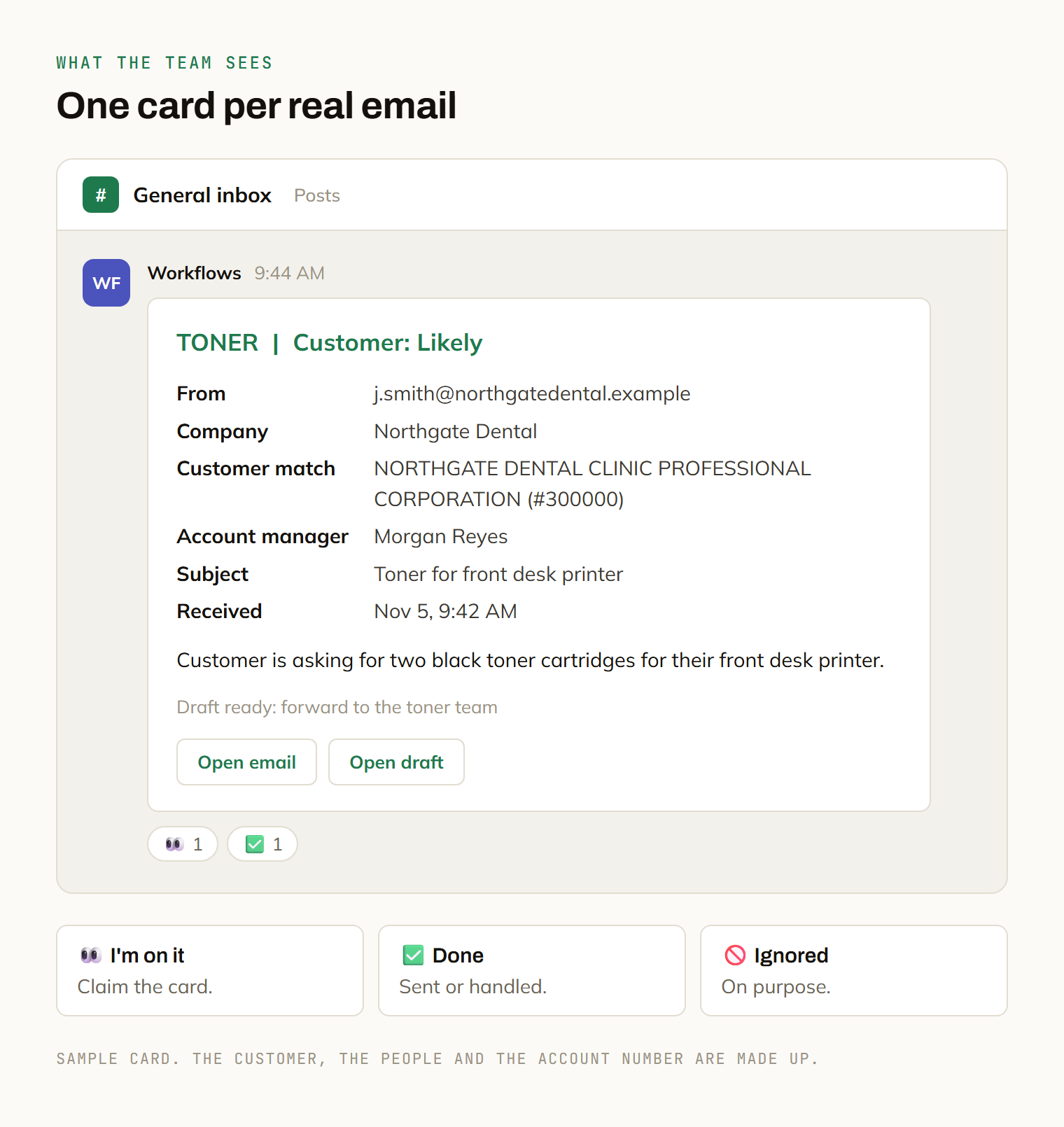
Everyone who watches the inbox now works out of the same channel and follows a simple emoji system. 👀 means someone is working on it. ✅ means it's done. 🚫 means it was ignored on purpose.
03How it works
Every email that lands in the general inbox goes through the same eight steps.
First, the flow clears out what nobody needs to see. Emails from known spam senders are checked against a short blocked list and filed in a Filtered folder. Reply-all chains on emails a team already has are filed without a card. Nothing is deleted.
Next, the AI step reads the email and returns a category, the company name, an account number if there is one, and a one-line summary.
Then the sender is checked against our customer list. This was the most important step to get right, because what a customer writes in their email or signature often doesn't match how we store them in our systems.
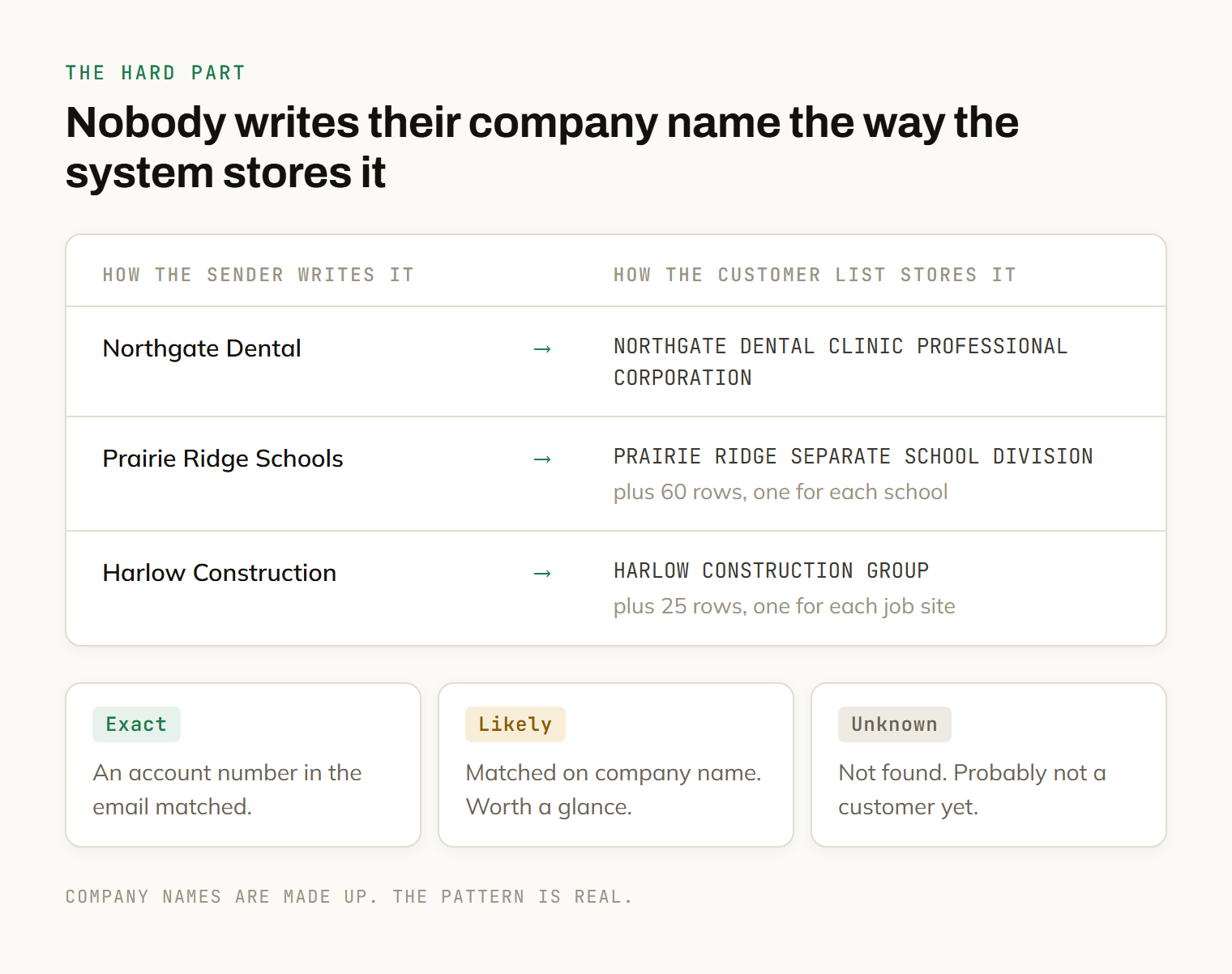
To handle this, the AI takes everything in the email and cross-references it against the customer list. If an account number in the email matches, the card says Exact. If it matched on the company name, it says Likely, which is worth a quick check. If it can't find a match, it says Unknown, which usually means the sender isn't a customer yet.
After that, sales pitches are filed in the Filtered folder unless the sender turns out to be a customer. For routine requests, a draft forward is prepared for the right team. Last, the card is posted in Teams, and from there it's over to a person.
04Human in the loop
I designed this system to keep a human in the loop on purpose, even though most of the email could follow simple routing rules. A mistake that reaches a customer costs enough that it's worth a few seconds to review the draft, or a bit longer if it needs editing.
Mistakes do happen. The AI can pick the wrong category, which sends the draft to the wrong team. It can match the email to the wrong customer, or miss a match and mark an existing customer as Unknown.
I wrote a while back about speed vs velocity. This project is a good example of the difference. The AI speeds up a process we already had. The human review makes sure it ends in the right outcome, and that's what gives it direction.